

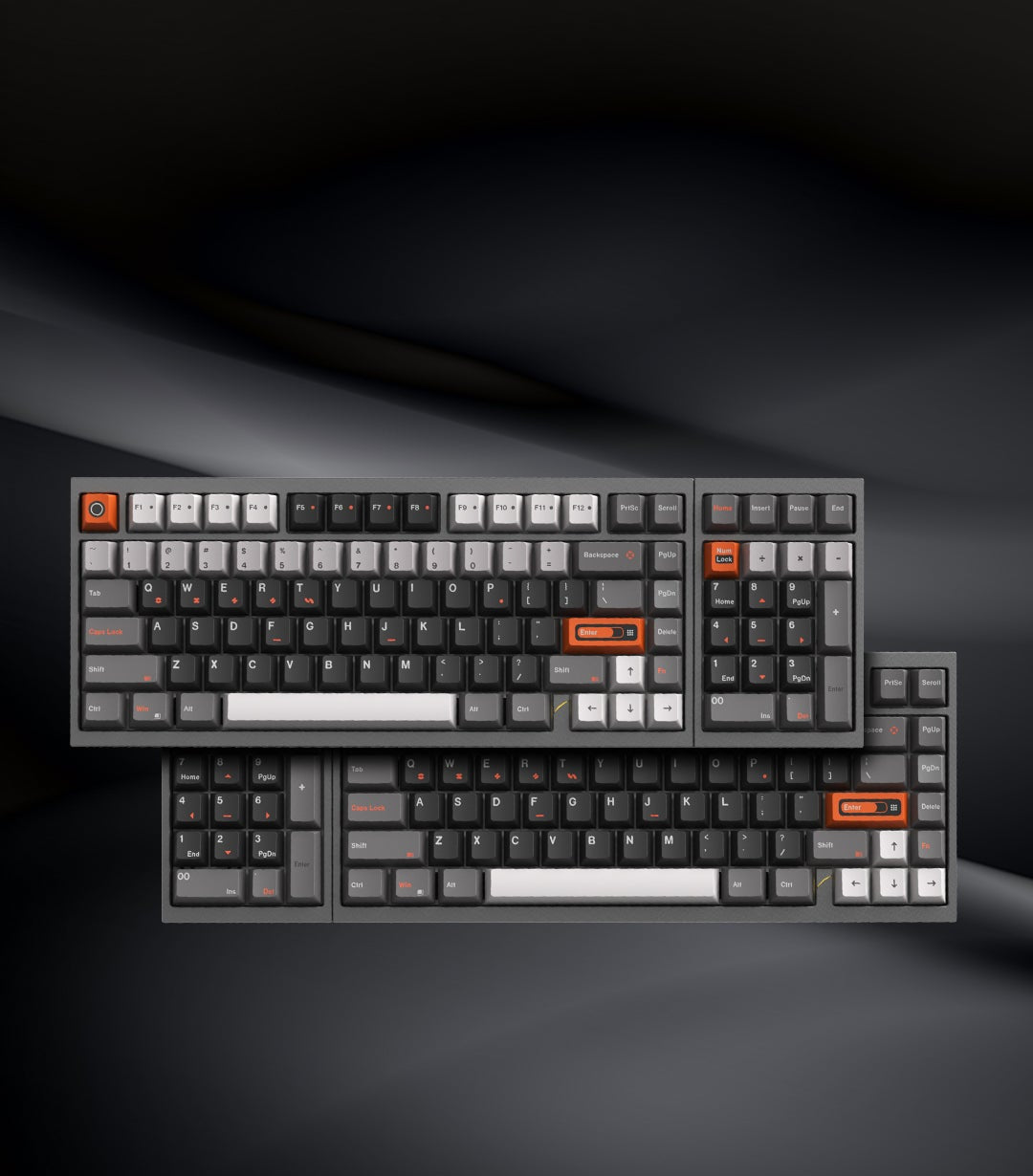

Why Build a Custom Mechanical Keyboard?
Building a custom mechanical keyboard gives you complete control over every aspect of your typing experience — from the sound profile and key feel to the layout and aesthetics. While pre-built keyboards offer convenience, a custom build lets you create something uniquely yours that performs exactly how you want.
In 2026, the barrier to entry has never been lower. Hot-swap PCBs eliminate the need for soldering, and brands like LUMINKEY offer premium keyboard kits that include everything you need for a professional-grade build. This guide walks you through the entire process from planning to first keystroke.
What You Need: The Essential Components
Every custom keyboard build requires these core components:
| Component | Purpose | Budget Range |
|---|---|---|
| Keyboard Kit (Case + PCB + Plate) | The foundation of your build | $100-400 |
| Switches | Determines key feel and sound | $30-80 |
| Keycaps | The surface you touch and see | $30-150 |
| Stabilizers | Keeps larger keys level | $15-30 |
| Cable | Connects keyboard to PC | $15-50 |
Step 1: Choose Your Layout
Your keyboard layout determines how many keys you have and how much desk space the board occupies. The most popular layouts for custom builds in 2026:
- 75% (like the LUMINKEY75 V2) — Compact layout with function row. Best balance of functionality and desk space. Includes F-keys, arrow keys, and a few navigation keys without the numpad.
- 65% (like the LUMINKEY65) — Removes the function row for an even more compact footprint. Arrow keys and a few nav keys remain. Popular with gamers who want maximum mouse space.
- 60% (like the Magger60) — Minimalist layout with only the alphanumeric block. Everything else accessed via function layers. Maximum desk space for competitive gaming.
- TKL/80% (like the LUMINKEY80) — Full keyboard minus the numpad. All function and navigation keys present. Best for users who need dedicated keys without the full-size footprint.
Step 2: Select Your Switches
Switches are the heart of your keyboard's feel and sound. In 2026, you have two main technologies:
Hall Effect (Magnetic) Switches
Hall effect switches use magnets instead of metal contacts. Benefits include:
- Adjustable actuation — Change how far you press before the key registers (0.1mm to 4.0mm)
- Rapid Trigger — Keys reset the instant you lift, with no fixed reset point
- Zero contact bounce — No debounce delay means faster response
- Infinite lifespan — No physical contacts to wear out
Hall effect switches are ideal for competitive gamers and anyone who wants the most advanced switch technology available. The LUMINKEY75 V2 HE and Titan75 HE feature premium hall effect implementations.
Traditional Mechanical Switches
MX-style mechanical switches remain popular for their variety and proven reliability:
- Linear — Smooth press with no bump. Popular for gaming (Cherry MX Red, Gateron Yellow)
- Tactile — Noticeable bump at actuation. Great for typing (Holy Panda, Boba U4T)
- Clicky — Audible click at actuation. Satisfying but loud (Cherry MX Blue, Box Jade)
Step 3: Assemble Your Build
With a hot-swap keyboard kit, assembly is straightforward:
- Prepare stabilizers — Clip, lube, and install stabilizers on the PCB for spacebar, enter, shift, and backspace keys
- Install switches — Align switch pins with PCB hot-swap sockets and press firmly until seated. Ensure pins are straight to avoid bending.
- Test PCB — Before adding keycaps, plug in and test every switch registers correctly using a key tester website
- Add foam layers — Install case foam (between PCB and case bottom) and plate foam (between plate and PCB) for improved sound
- Mount plate assembly — Place the plate/PCB assembly into the case. For gasket mount keyboards, ensure gaskets are properly aligned.
- Install keycaps — Press keycaps onto switch stems, starting with stabilized keys to ensure proper alignment
- Final test — Test all keys again, check stabilizer rattle, and adjust if needed
Step 4: Tuning and Modding
Once assembled, you can fine-tune your build:
- Switch lubing — Apply thin lubricant (Krytox 205g0) to switch stems and springs for smoother feel and reduced scratchiness
- Tape mod — Layers of masking tape on the back of the PCB alter the sound profile, adding a deeper, more poppy tone
- PE foam mod — Thin PE foam between switches and PCB creates a marble-like clack sound
- Force break mod — Silicone between case halves reduces case resonance
Recommended Starter Builds
Based on your priorities, here are our recommended LUMINKEY kits for first-time builders:
- Best for gaming — Titan75 HE or LUMINKEY75 V2 HE (hall effect, rapid trigger, gasket mount)
- Best for typing — LUMINKEY75 V2 (hot-swap mechanical, gasket mount, premium sound)
- Best compact — Magger60 HE (60% hall effect, ultra-responsive, minimal footprint)
- Best all-rounder — LUMINKEY80 (TKL layout, full function keys, gasket mount)
Common Mistakes to Avoid
- Bent switch pins — Always check pin alignment before inserting. Bent pins can damage hot-swap sockets.
- Over-lubing stabilizers — Too much lube causes sluggish, mushy stabilizers. Less is more.
- Ignoring foam — Foam layers dramatically improve sound. Don't skip them even on budget builds.
- Wrong keycap profile — Ensure your keycap set matches your layout. 75% boards often need specific key sizes.
Ready to start your build? Browse our complete keyboard collection featuring premium kits, switches, and accessories for every skill level.
Share:
Gasket Mount Keyboards Explained: Why They Sound and Feel Better
Best Keyboard for Valorant and CS2: Pro Settings and Switch Guide 2026